Video Subtitles
Supported platforms
YouTube, Netflix, and Prime Video are all supported. The extension detects Hindi subtitles and shows an interactive overlay below the player, no setup needed. Just navigate to a video with Hindi captions and it appears automatically.
One note on YouTube: the video needs to have Hindi subtitles available (auto-generated or uploaded). Live streams aren't supported.
The subtitle overlay
When subtitles are detected, the current line shows up as clickable, color-coded words, just like a parsed webpage. Click any word to look it up in the popup dictionary.
The overlay has controls to replay the current subtitle, toggle study mode, open the transcript panel, and switch between Devanagari and romanized text.
Transcript panel
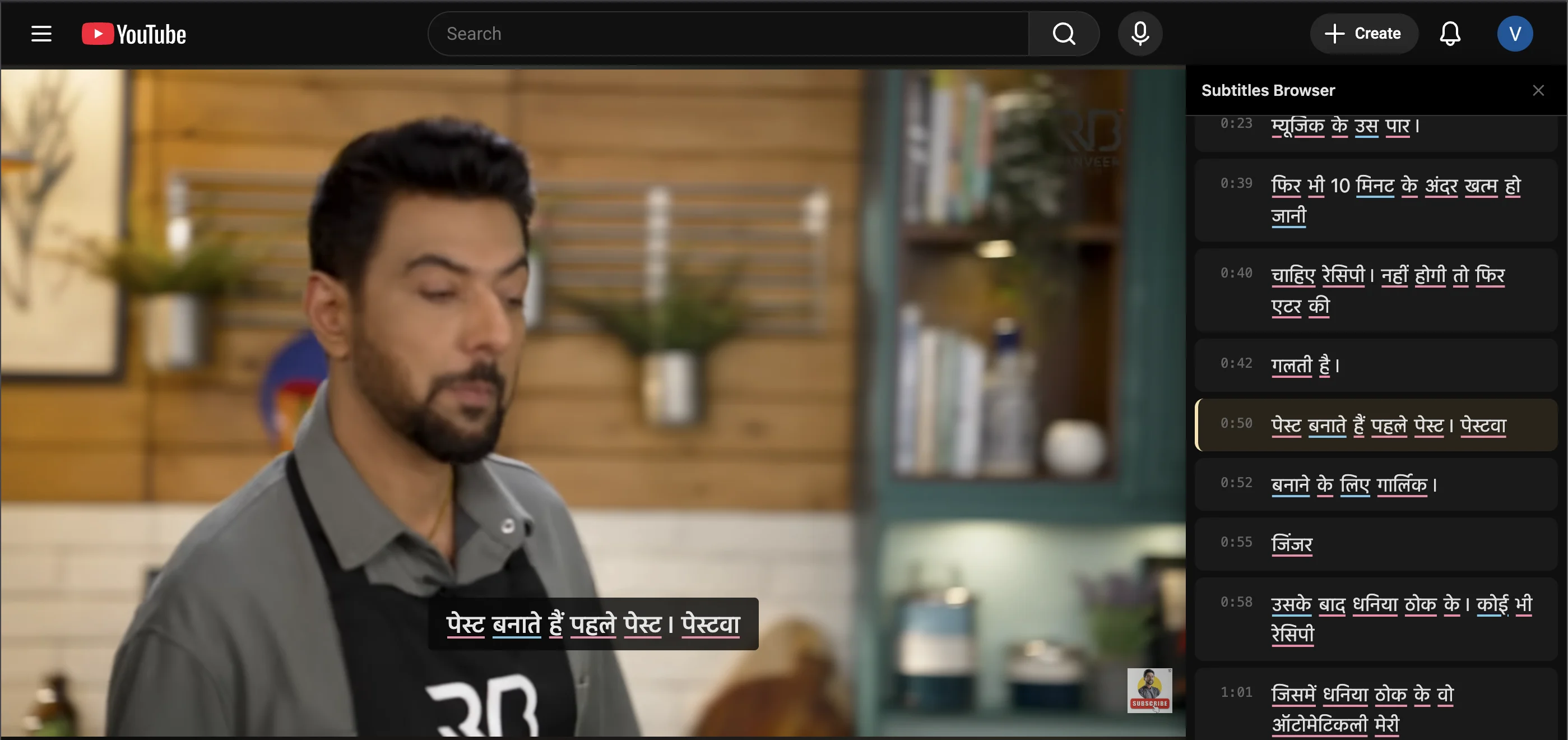
Click the transcript button to open a sidebar with every subtitle line in the video. Each line has a clickable timestamp that jumps to that point. The panel scrolls along automatically as the video plays.
Words in the transcript are clickable too, so you can look up words from other parts of the video without scrubbing through the timeline.
Study mode
Hit the graduation cap button to turn on study mode. The video pauses whenever a subtitle with unknown words appears. Look things up, mark words, then click Continue to keep going.
Works well for focused study sessions. For casual watching, just leave it off and look up words as they catch your eye.
Keyboard shortcuts
There are six shortcuts for controlling playback. You can customize all of them in Settings > Shortcuts:
Arrow Left / Right: jump to the previous or next subtitle. Arrow Down: replay the current one. Space: play/pause. H: hide/show subtitles. B: toggle the transcript panel.
These override the platform's native shortcuts while Desi Lingo is active, so Arrow Left jumps to the previous subtitle instead of seeking backward.
Video Subtitles
Supported platforms
YouTube, Netflix, and Prime Video are all supported. The extension detects Hindi subtitles and shows an interactive overlay below the player, no setup needed. Just navigate to a video with Hindi captions and it appears automatically.
One note on YouTube: the video needs to have Hindi subtitles available (auto-generated or uploaded). Live streams aren't supported.
The subtitle overlay
When subtitles are detected, the current line shows up as clickable, color-coded words, just like a parsed webpage. Click any word to look it up in the popup dictionary.
The overlay has controls to replay the current subtitle, toggle study mode, open the transcript panel, and switch between Devanagari and romanized text.
Transcript panel
Click the transcript button to open a sidebar with every subtitle line in the video. Each line has a clickable timestamp that jumps to that point. The panel scrolls along automatically as the video plays.
Words in the transcript are clickable too, so you can look up words from other parts of the video without scrubbing through the timeline.
Study mode
Hit the graduation cap button to turn on study mode. The video pauses whenever a subtitle with unknown words appears. Look things up, mark words, then click Continue to keep going.
Works well for focused study sessions. For casual watching, just leave it off and look up words as they catch your eye.
Keyboard shortcuts
There are six shortcuts for controlling playback. You can customize all of them in Settings > Shortcuts:
Arrow Left / Right: jump to the previous or next subtitle. Arrow Down: replay the current one. Space: play/pause. H: hide/show subtitles. B: toggle the transcript panel.
These override the platform's native shortcuts while Desi Lingo is active, so Arrow Left jumps to the previous subtitle instead of seeking backward.